Designing Your Matsumoto Trip
—A Guide to Creating Your Own Itinerary—
"Create Your Own Itinerary" Feature to Help You Plan Your Trip
“There are so many places I want to visit, but I don’t know how to plan my route,” “I want to plan my itinerary, but managing my schedule is difficult,” “I want to easily share my itinerary”—if you’re facing these challenges, try our new “Create Your Own Itinerary” feature.
Here’s a detailed guide on how to create your own original itinerary using the spots you’ve added to “Your List.”
STEP 1 ▶ Save to "Your List"
First, let’s find some places you’d “love to visit!”
Matsumoto City is brimming with fascinating spots, including Matsumoto Castle (a National Treasure), the charming castle town, and the majestic Kamikochi. Be sure to save plenty of places you’d “love to visit!”
- Search for spots you “want to visit” or are “interested
in.” You can save all kinds of spots to “Your List,” including tourist attractions, activities and tours, events, dining options, and accommodations. - Once you find a spot you want to visit, click the ★ icon for that spot, or click “Add to Your
List” on the spot’s page. *To remove a spot from “Your List,” simply click the ★ icon again on the spot’s page or in the list.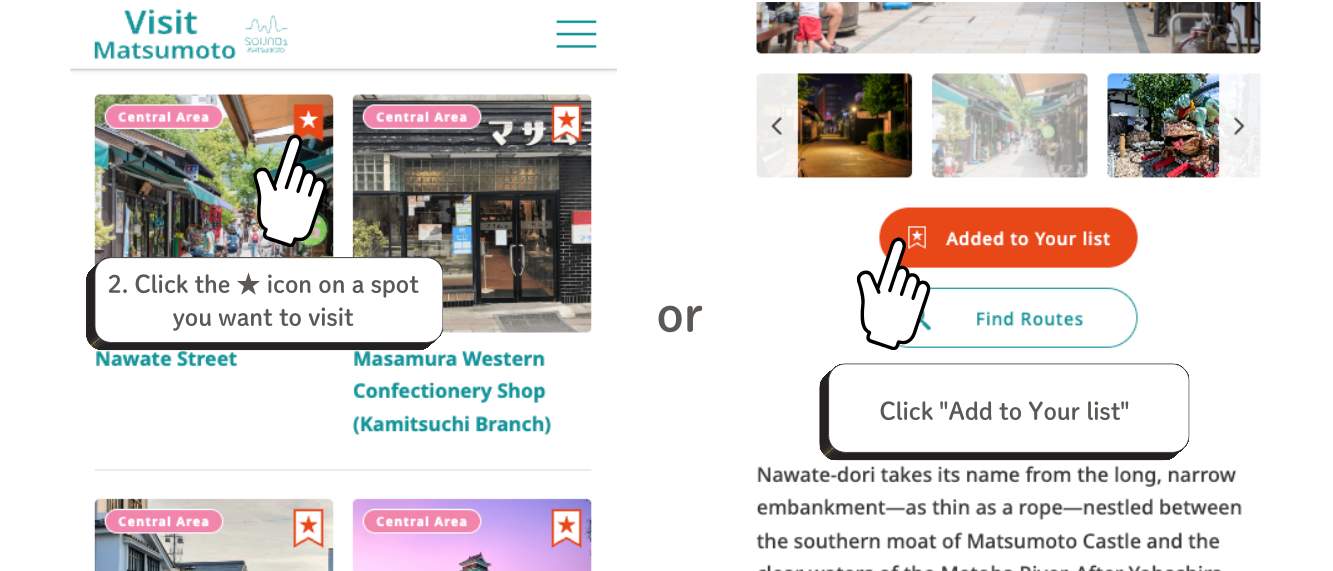
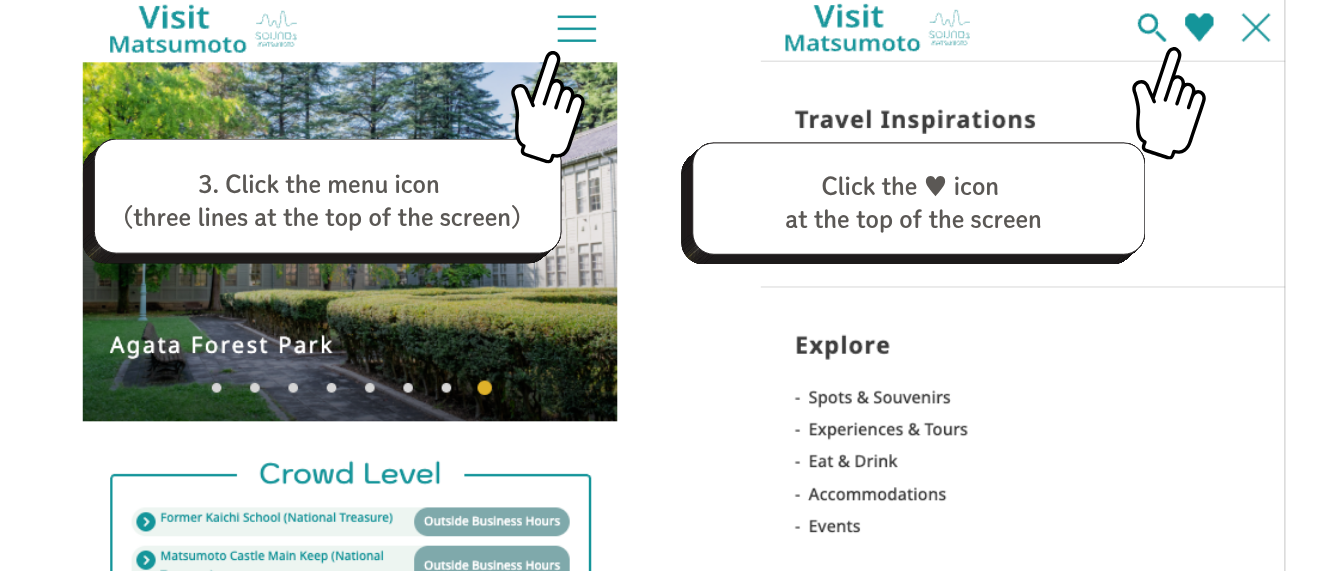
- Click the hamburger menu (the three horizontal lines at the top of the screen), then click the ★ icon.
- Click “Display Your List” to confirm
that the selected spots have been saved to your “Your List.” *To remove a spot from your “Your List,” click the trash can icon on the spot’s page.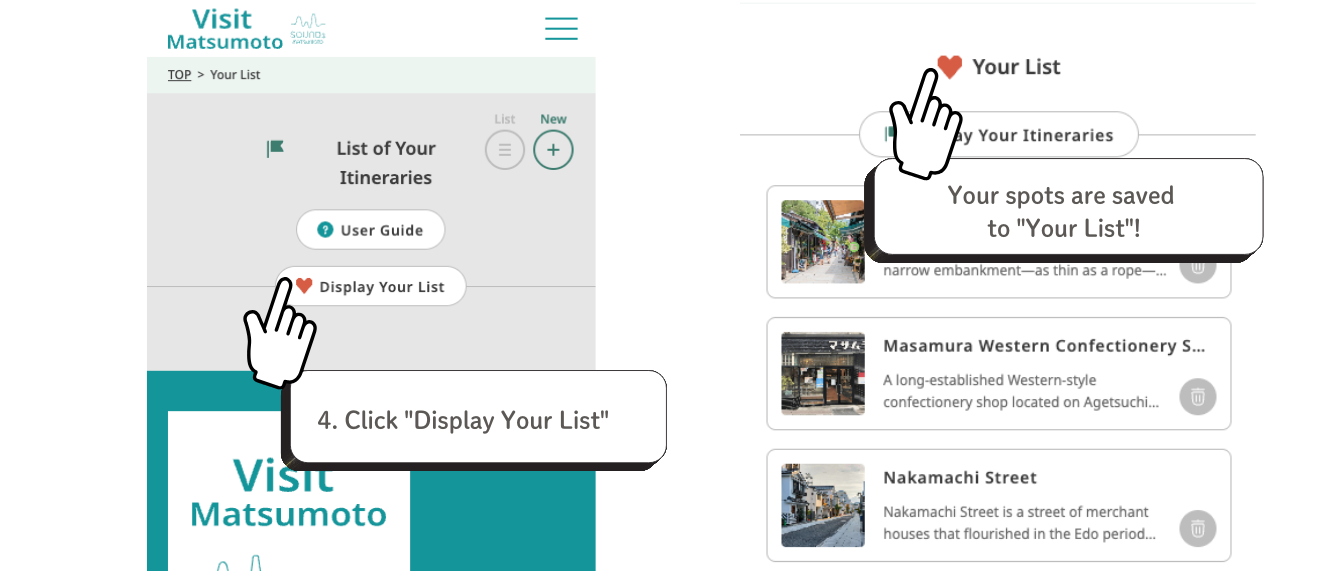
STEP 2 ▶ Create your own itinerary from the “Your List”
Let's create a custom route using the spots you've added to "Your List."
💡Don’t worry if you’re not familiar with the area!
The spots you’ve added are automatically sorted “in order of proximity to Matsumoto Station.” You don’t have to worry about “which order is most efficient?”—the app will automatically create a smooth itinerary starting from the station.
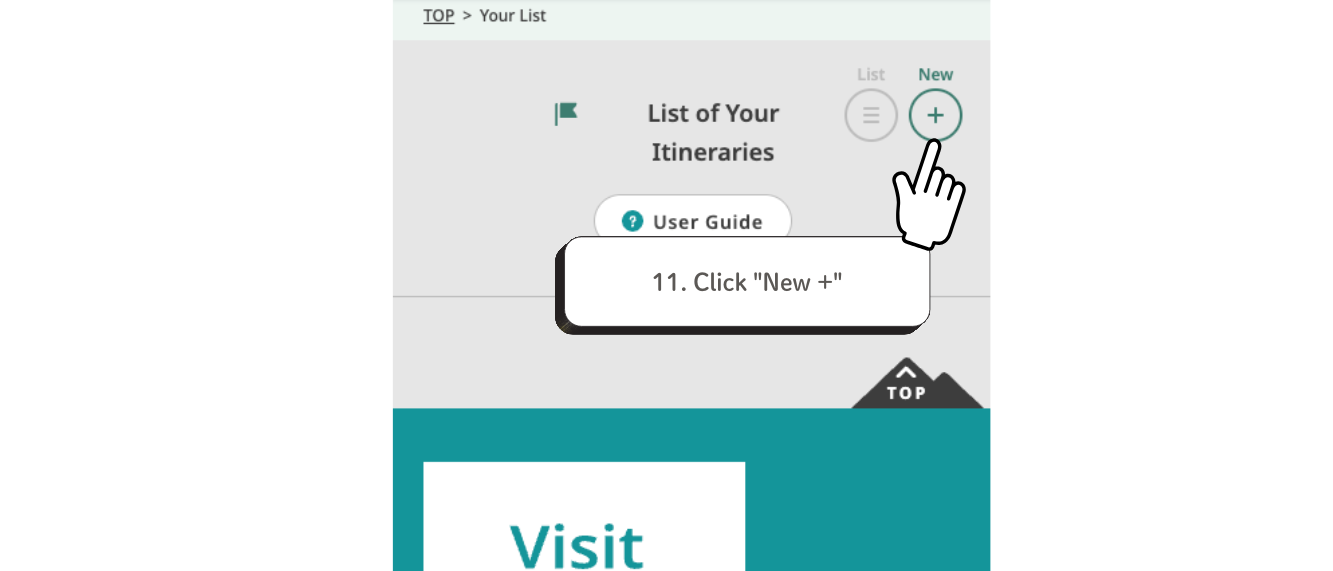
- Click “New +” in the “Your Itineraries” list to add a new itinerary.
- Select the spots you want to add to Your
Itineraries from your “Your List.” Click “Add Selected Spots to Your Itineraries,” and Your Itineraries will be created automatically
. Click “Display Your Itineraries.”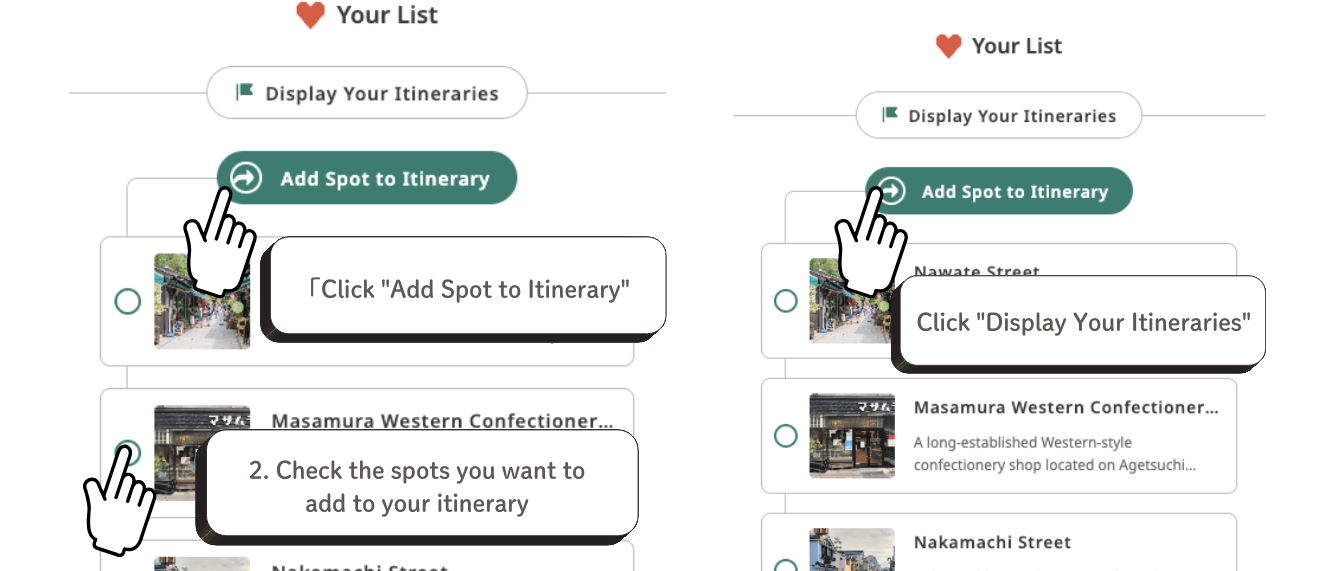
- “Your Itineraries” has been created with the spots you checked!
*If you want to remove a spot from “Your Itineraries,” click the “Back” icon next to each spot.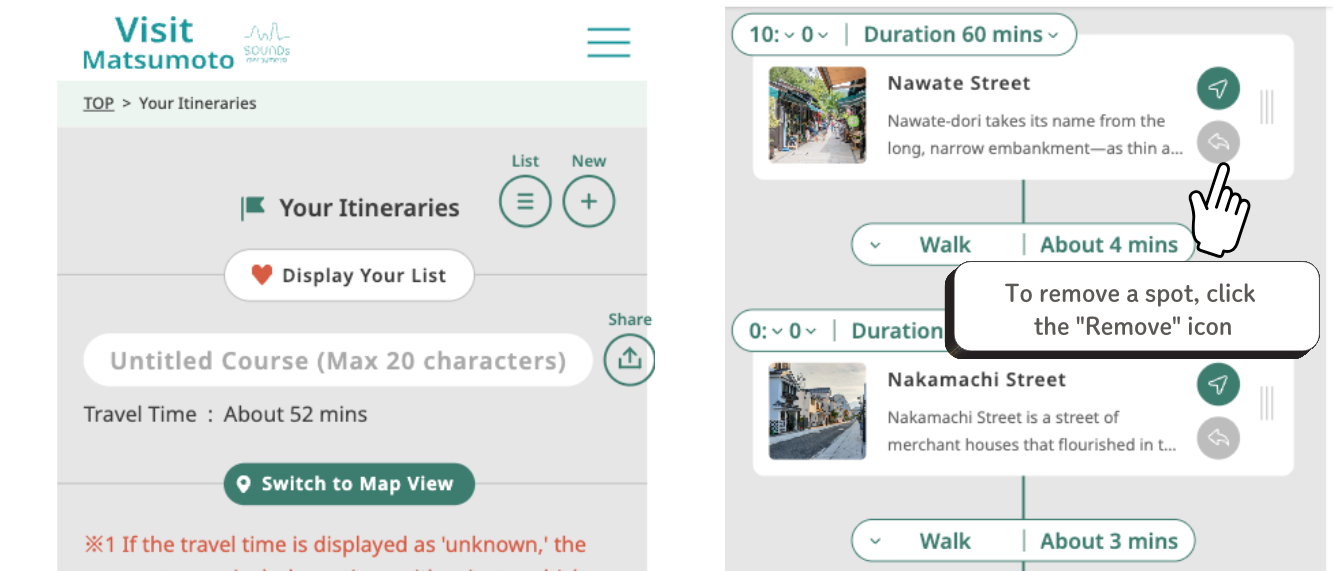
STEP 3 ▶ Customizing Your Itineraries
You can customize the ”Your Itineraries” you’ve created to suit your needs.
You can change the course name, duration, and mode of transportation. If you find yourself thinking, “I want to stop by a soba restaurant before going to Matsumoto Castle,” you can easily rearrange the itinerary by simply dragging and dropping the spots.
💡 By selecting the length of time you want to spend at each spot—such as “I want to take my time here for an hour” or “I’ll just take a photo here and spend 15 minutes”—and choosing your mode of transportation, you can see the total duration of your itinerary. This allows you to create a more detailed schedule even if you’re unfamiliar with the area!
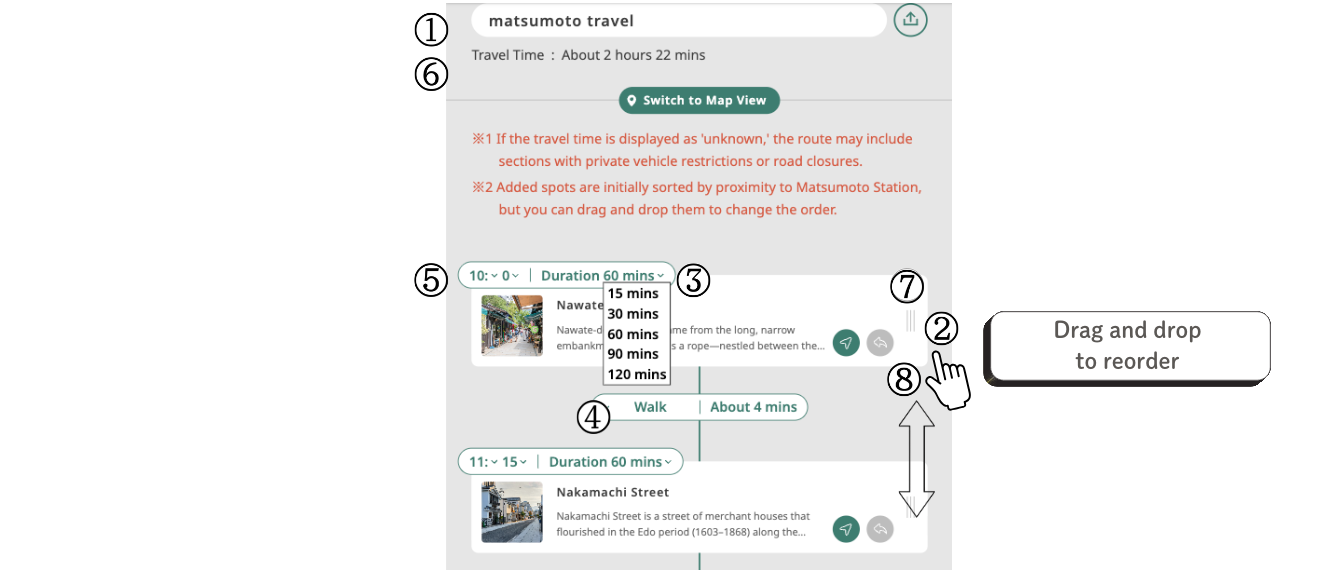
① Changing the Course Name
By default, the course is named “Untitled Course.” You can change it to any name you like.
② Rearranging the Itinerary
By default, spots are listed in order of proximity to Matsumoto Station. You can reorder them by dragging and dropping.
③ Changing the Duration
You can choose a duration of 15 minutes, 30 minutes, 60 minutes, 90 minutes, or 120 minutes. Please select from the drop-down menu.
④ Selecting a Mode of Transportation
You can choose between “Walking” and “Car.” Once you select a mode of transportation, the travel time will be automatically updated.
⑤ Enter Times
You can freely enter the estimated arrival times for each spot, so please set them based on the duration of your stay and travel time.
⑥ Total Travel Time
The total time required for “stay + travel” is calculated automatically.
⑦ Route Search
Search for a route from your current location using Google Maps.
⑧ Return to “Your List”
You can remove a spot from “Your Itinerary” and return it to the “Your List.”
STEP 4 ▶ Share Your Itineraries!
Share Your Itineraries with friends and family who’ll be joining you, or post it on social media!
Sending it to friends or family who will be joining you lets you share a concrete vision of the trip, which will make the day even more exciting. You might also want to post it on social media to share, “This is the kind of trip I’m going on.”
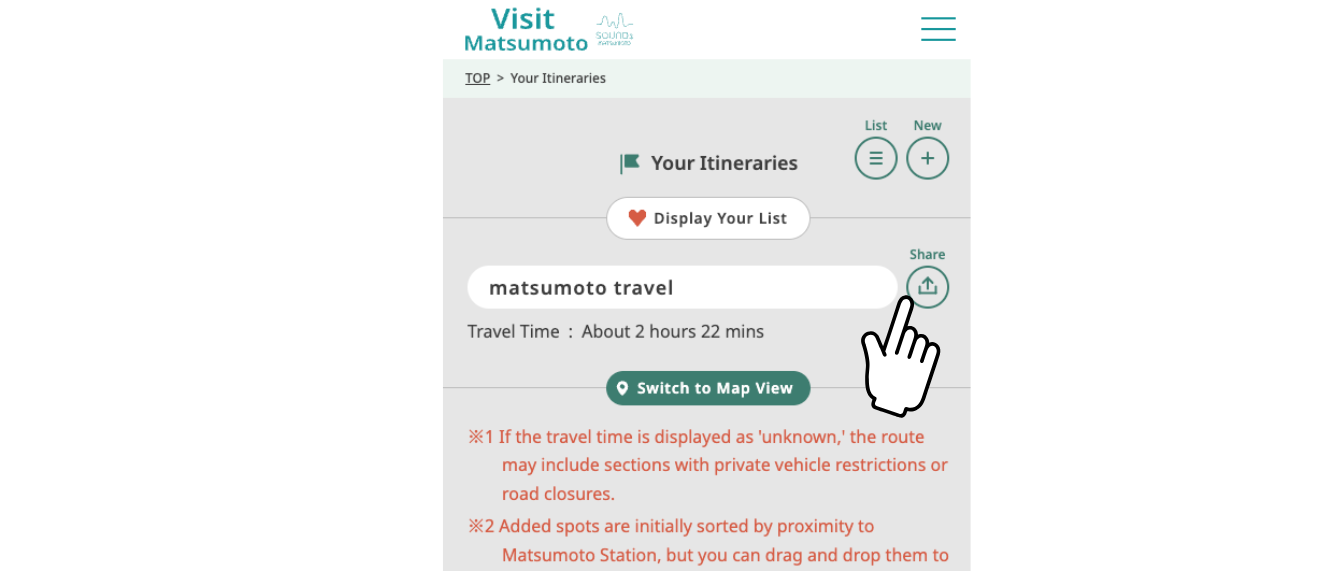
💡The itinerary you create will be generated as a unique URL, which you can easily share via email or social media (X, LINE, Facebook).
- Click the Share button
- Select your preferred sharing method
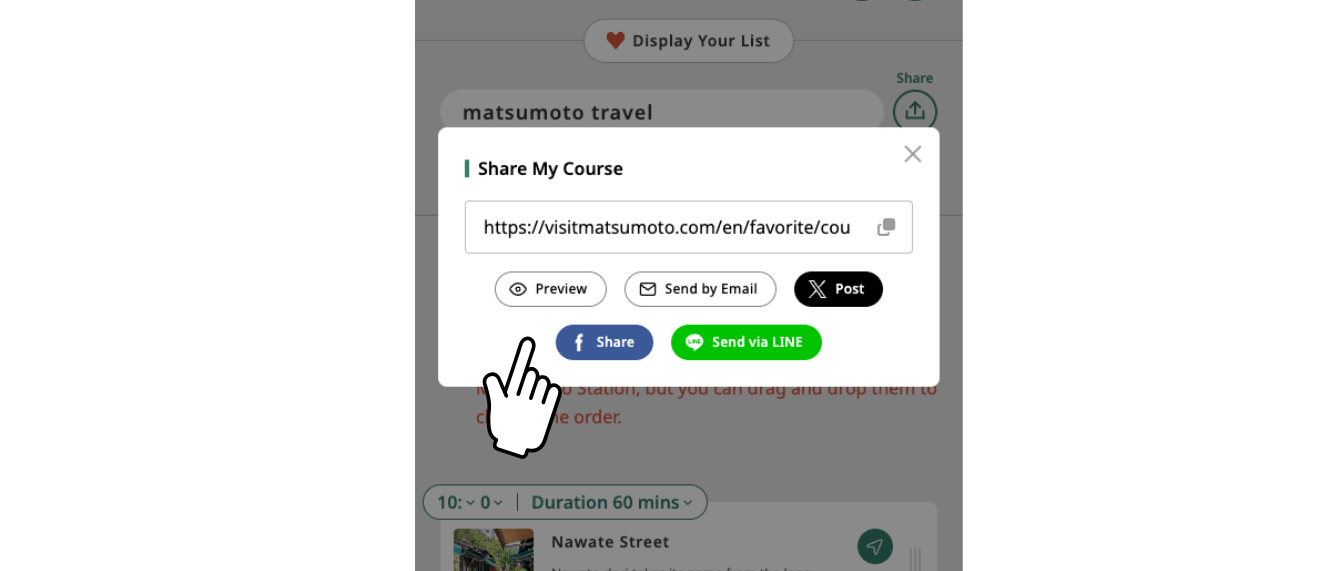
- You’ll be redirected to the respective social media platform, and your post will be complete
Create Your Itineraries for the spots you want to visit and be sure to give it a try!